Welcome to the Cornbury Society website. Explore away!
The topics below are clickable. There will be more to come – tips, hints, help etc. Come back often!
How do I...
Here are some tips on becoming a member, renewing membership, using the site and more.
You can see most of the website without logging in or creating an ID. You can’t create your own username (a.k.a. register yourself on the site); sorry.
So – just start browsing around and enjoy your visit!
If you really need a username, for example so you can comment on posts, please use our Contact Us form to request one.
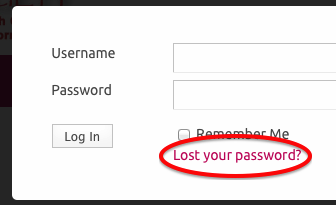 If you’re not logged in: Look in the login box for “Lost your password?”. This will email you a link. Check your email in a few minutes, then click the link in the email and you can set a new password. The email address will be the one used when your account was set up. If you don’t have access to this email any more, please use the Contact Us page for help.
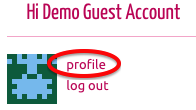 If you’re already logged in: Go to your Profile page (link is usually near the top right, just below the pink menubar. In the row of options below your picture is “Settings”, wherein you can change your password.
The Cornbury Society serves crossdressers, transgenders, their supporters and allies. We like to speak with prospective members face to face before they join in order to answer questions and make sure we’re a good fit for each other.
Use the Contact Us form in the main menu bar to request a membership interview. Someone from the Society will contact you with more information.
Full membership is $50 per calendar year. Dues are due in January.
Spouses/partners and supporters are welcome to join for free. Contact us for details.
If you live more than 75 km from the Vancouver, BC area or or are otherwise unable to get to meetings, you may be eligible for an online-only membership, which is $20/year.
As a paid-up member of the Cornbury Society you’ll enjoy:
- notification of private events (yes, we invite the public to some of our events but must keep some events private for our closeted members)
- greater access to the website (personal blogs, the ability to comment on posts, friending and messaging of other members and more)
- getting to know a great group of like-minded people!
Easy. From mid-December through the end of March, you’ll see an event on our calendar called “Dues Renewal”. Click on it and follow the instructions therein.
Note that you must be logged in as a paid-up member to see this. If you can’t login or your membership’s expired, use the Contact Us form for help.
New accounts are given an automatically generated profile photo of coloured squares like the example below. You can upload your own photo instead.
You must be logged into the site.
- Each page has something like this on it:
- Click Profile to go to your Profile screen.
- In your Profile screen, click Profile.
- Click Change Profile Photo and follow the directions.
Blogs and Posts
A Blog is a bit like an online diary. The individual entries in it are Posts.
Site members (i.e. paid-up Cornbury members) can create Posts. Your post becomes an entry in your Blog and is identified by your name. They’re all run together chronologically. However they’re all identified by author and you can single out a particular author’s posts for easier reading.
To see all the posts, choose Blogs in the menu bar.
To see posts from a specific month or a specific author, use the pulldown menus at the right of your page.
To add a post of your own, you must login (meaning you must have an ID as a Cornbury member). Then in the menu bar under Blogs, click Post an Entry. For more detailed instructions, see How do I create a post?
A Post is an entry in your Blog. Think of it as a page in your diary, except that it’s online, and (usually) anyone can read it.
You must be logged in as a paid-up Cornbury member in order to create a post. Do this:
- In the pink menu bar, click Blogs > Post an Entry.
- In the resulting screen, create your post. Enter a title, then enter the body of your post. There’s a toolbar with some handy formatting tools for bold and italic and such.
- Posts are publicly readable by default. If you want to restrict it to members only, click Members Only in the Categories box at the right of the screen.
- When you’re done, find the blue Publish button (its location varies depending on your screen size) and click it.
- You can still make changes. If you do, the Publish button changes to Update.
That’s it. A short version of your post will now appear on the site’s home page. Click it to read it in its entirety.
Pro tip: if you’re logged in and want to edit your own post, click on it to read it, then look towards the bottom for this: 